

Follow the troubleshooting steps below for your browser.
Chrome
- 1
Check your Graphics Feature Status
Open a new tab in Chrome and type
chrome://gpuinto the address bar. Review the Graphics Feature Status list. If items like WebGL, WebGL2, or Hardware Accelerated are listed as "Disabled" or "Software only," proceed to the steps below.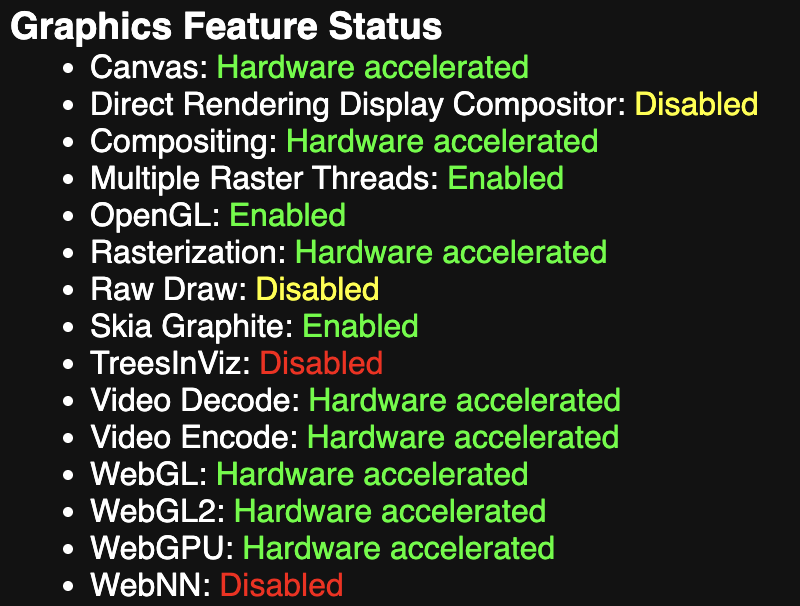
- 2
Override the Software Rendering List
Chrome sometimes "blocklists" certain GPU models or drivers for stability. You can manually bypass this:
- Navigate to
chrome://flagsin your address bar. - Search for Override software rendering list (or
#ignore-gpu-blocklist). - Set the dropdown menu to Enabled.
- Click the Relaunch button that appears at the bottom of the page.
- Navigate to
- 3
Enable WebGL Extensions
- In the address bar, type
chrome://flagsand press Enter. - In the search bar, type
WebGL. - Find
WebGL Draft Extensionsand set the dropdown next to it toEnabled. - Find
WebGL Developer Extensionsand set the dropdown next to it toEnabled. - Click the
Relaunchbutton that appears at the bottom of the page.
- In the address bar, type
- 4
Enable Skia Graphite
If you are using modern GPUs (such as NVIDIA 30-series), enabling the Skia rendering engine could resolve the issue:

- Go to
chrome://flags. - Search for Skia Graphite.
- Set it to Enabled.
- Relaunch the browser.
- Go to
- 5
Verify Driver and Browser Updates
- Update Drivers: For NVIDIA users, ensure you are using the latest "Game Ready" or "Studio" driver via GeForce Experience.
- Clear Cache: Go to Settings > Privacy and security > Clear browsing data and clear "Cached images and files."
- Check WebGL Support: Visit a site like
webglreport.comto confirm that WebGL 2 is successfully supported and active in your current browser session.
- 6
Reach out to support
If all else fails, you can reach out to our support on Discord for further troubleshooting.
Edge
- 1
Check Your Graphics Feature Status
Open a new tab in Edge and type
edge://gpuinto the address bar. Review the Graphics Feature Status list. If items like WebGL, WebGL2, or Hardware Acceleration are listed as "Disabled" or "Software only," proceed to the next steps.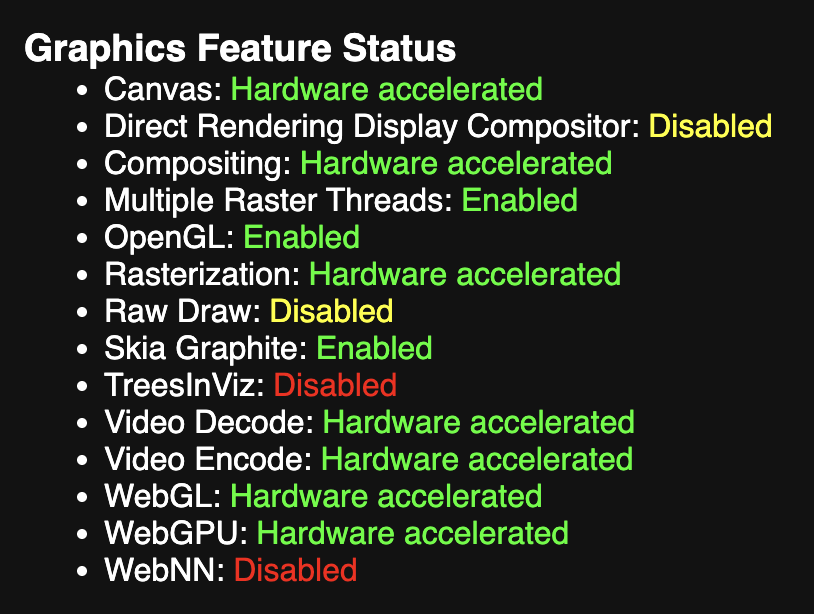
- 2
Override the Software Rendering List
Edge may "blocklist" certain GPU models or drivers for stability. You can manually bypass this:
- Navigate to
edge://flagsin your address bar. - Search for Override software rendering list (or
#ignore-gpu-blocklist). - Set the dropdown menu to Enabled.
- Click the Restart button that appears at the bottom of the page.
- Navigate to
- 3
Enable WebGL Extensions
- In the address bar, type
edge://flagsand press Enter. - In the search bar, type
WebGL. - Find WebGL Draft Extensions and set the dropdown next to it to Enabled.
- Find WebGL Developer Extensions and set the dropdown next to it to Enabled.
- Click the Restart button that appears at the bottom of the page.
- In the address bar, type
- 4
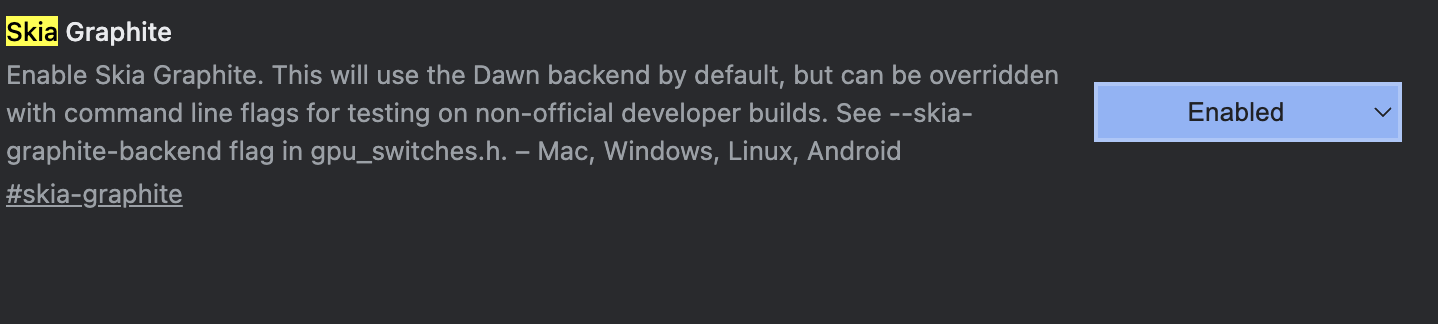
Enable Skia Graphite
If you are using modern GPUs (such as NVIDIA 30-series), enabling the Skia rendering engine could resolve the issue:
- Go to
edge://flags. - Search for Skia Graphite.
- Set it to Enabled.
- Relaunch the browser.
- Go to
- 5
Verify Driver and Browser Updates
- Update Drivers: Ensure you are using the latest GPU drivers (NVIDIA / AMD / Intel).
- Clear Cache: Go to Settings > Privacy, search, and services > Clear browsing data and clear "Cached images and files."
- Check WebGL Support: Visit a site like webglreport.com to confirm that WebGL 2 is successfully supported and active in your current browser session.
- 6
Reach out to support
If all else fails, you can reach out to our support on Discord for further troubleshooting.
Firefox
- 1
Check your Graphics Status
Open a new tab in Firefox and type
about:supportinto the address bar.Scroll down to the Graphics section and review the following:
- Compositing
- GPU Process
- WebGL 1 Driver Renderer
- WebGL 2 Driver Renderer
Hardware acceleration is working correctly if:
-
Compositing shows WebRender

-
GPU Process shows available

-
WebGL renderer information is present (e.g., Apple, NVIDIA, AMD, Intel)


If Compositing shows Basic, GPU Process is unavailable, or WebGL renderer information is missing, proceed to the steps below.
- 2
Confirm Hardware Acceleration is Enabled
- Open Settings in Firefox.
- Scroll to the Performance section.
- Uncheck Use recommended performance settings.
- Ensure Use hardware acceleration when available is enabled.
- Restart Firefox.
- 3
Modify Advanced Graphics Settings
- In the address bar, type
about:config. - Press Enter and click Accept the Risk and Continue.
- Search for the following preferences and ensure they are set as follows:
webgl.disabled→falselayers.acceleration.force-enabled→truegfx.webrender.all→true
- Restart Firefox after making these changes.
- In the address bar, type
- 4
Verify Driver and Browser Updates
- Update Drivers: Ensure your GPU drivers (NVIDIA / AMD / Intel) are fully updated.
- Restart your computer after updating your drivers.
- Check WebGL Support: Visit webglreport.com to confirm that WebGL 2 is supported and active in your current browser session.
- 5
Reach out to support
If all else fails, you can reach out to our support on Discord for further troubleshooting.