

The Kiyotaka Terminal is your command center. Unlike rigid exchange interfaces, our Terminal is built on a flexible, modular grid system that allows you to fully personalize your workspace.
Whether you are a scalper needing tick-by-tick data or a swing trader focused on macro structure, you can drag, drop, resize, and toggle widgets to fit your unique workflow.
Available Widgets
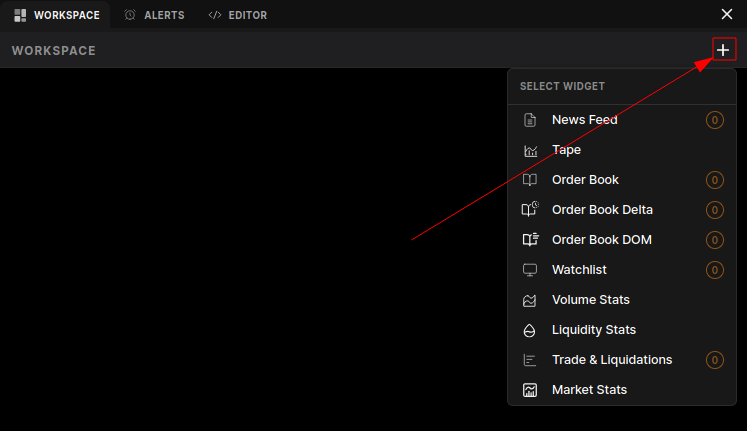
You can activate any of the following modules from the Widget Menu (accessible by clicking on the plus icon in the workspace tab).
📰 Market Intelligence
- News Feed: A real-time stream of relevant market news and social sentiment. Stay ahead of catalysts that drive prediction market outcomes. Read more about News Feed →
📊 Order Flow & Liquidity
- Tape: The raw, unfiltered feed of all executed trades. Use this to spot "whale" activity and immediate buying or selling pressure. Read more about The Tape →
- Order Book: View the active limit orders (Bids and Asks) currently waiting to be filled. Essential for finding entry and exit liquidity. Read more about Order Book →
- Order Book Delta: A powerful momentum indicator that visualizes the net difference between aggressive buyers and sellers over a specific timeframe. Read more about OB Delta →
- Order Book DOM (Depth of Market): A visual heatmap or ladder view of the order book, allowing you to see "walls" of support and resistance at a glance. Read more about DOM →
📉 Analytics & Stats
- Volume Stats: detailed breakdown of trading volume, often split by "Maker" vs "Taker" or by time intervals (1m, 5m, 1h). Read more about Volume Stats →
- Liquidity Stats: Metrics tracking market depth and slippage risks. Crucial for larger traders who need to know how much size the market can absorb. Read more about Liquidity Stats →
- Market Stats: High-level overview of the selected market, including 24h Change, Open Interest, and Total Volume. Read more about Market Stats →
⚡ Activity Tracking
- Trade & Liquidations: A combined feed showing executed trades alongside significant liquidation events (if applicable to the specific venue/market type). Read more about Trade & Liqs →
- Watchlist: Your personalized dashboard of markets you are tracking. Monitor price changes and status across multiple prediction markets simultaneously. Read more about Watchlist →
Customizing Your Workspace
-
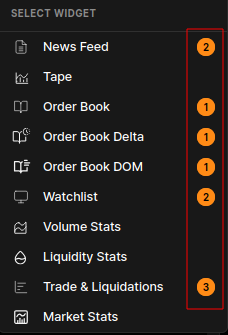
Add Widgets: Add one or more widgets from the Widget Menu (number of widgets added is shown beside the widget selection).
-
Arrange: Drag the widget header to move it anywhere on the screen.
-
Resize: Grab the corner of any widget to scale it up or down.
Your layout is automatically saved to your User Preferences, so your setup remains exactly how you left it the next time you log in.